

How to Find Your Steam Trade URL?
You trade CS2 skins all the time, but the person on the other side keeps asking for your link. You know it lives somewhere in your account, yet it’s not obvious at first glance. Let’s fix that fast so you can share your link with confidence and get back to real trading. In this guide, you will learn what Steam trade URL does, why you need it, and the exact steps to use it on desktop and mobile. You’ll also get safety tips and quick checks so your trades run smoothly. Keep reading, we’re starting right here.
What Is the Trade Steam URL?
Your Steam trade URL is a special link that lets other players send trade offers right to your account without needing to add you as a friend. When you share this link with trusted traders, marketplaces, or bots, they can send you offers instantly through Steam’s official system.
The links open your inventory and take you directly to the trade page, where you are able to view, accept, or decline offers. You can also create a new one at any time if you want to stop receiving trades from old or unwanted sources. It’s one of the easiest ways to keep your CS2 trades quick and organized. If you’ve ever wondered how to find Steam trade URL, you’ll see it’s simpler than it sounds.
Why Do CS2 Players Need Their Trade URL?
There are many situations where your Steam trade URL becomes helpful as a CS2 player. When you want to trade or sell skins, this link allows others to send offers straight to your account, which saves you time and removes the need to add new friends for each trade.
Beyond trading, your link is also helpful for giveaways and contests. Many players and streamers use it to quickly send prizes or get items from participants with just a few clicks. Most importantly, trading through your Steam trade URL gives you an extra level of safety.
All transactions happen in Steam’s official trade window, and both sides are able to double-check items before accepting. This protects your inventory, reduces the potential for scams, and makes the entire CS2 trading process quicker and safer.
How and Where to Find Your Steam Trade URL?
You can find your Steam Trade URL in just a few simple steps, and it works the same on both desktop and mobile. The steps are simple, and once you know where to look, you can copy or reset your link whenever you need it. Below, you’ll see exactly where to find Steam trade URL and how to share it safely.
Step 1: Open the Steam app on your computer and sign in to your account. Click your profile name at the top of the screen. This will take you to your main profile page.
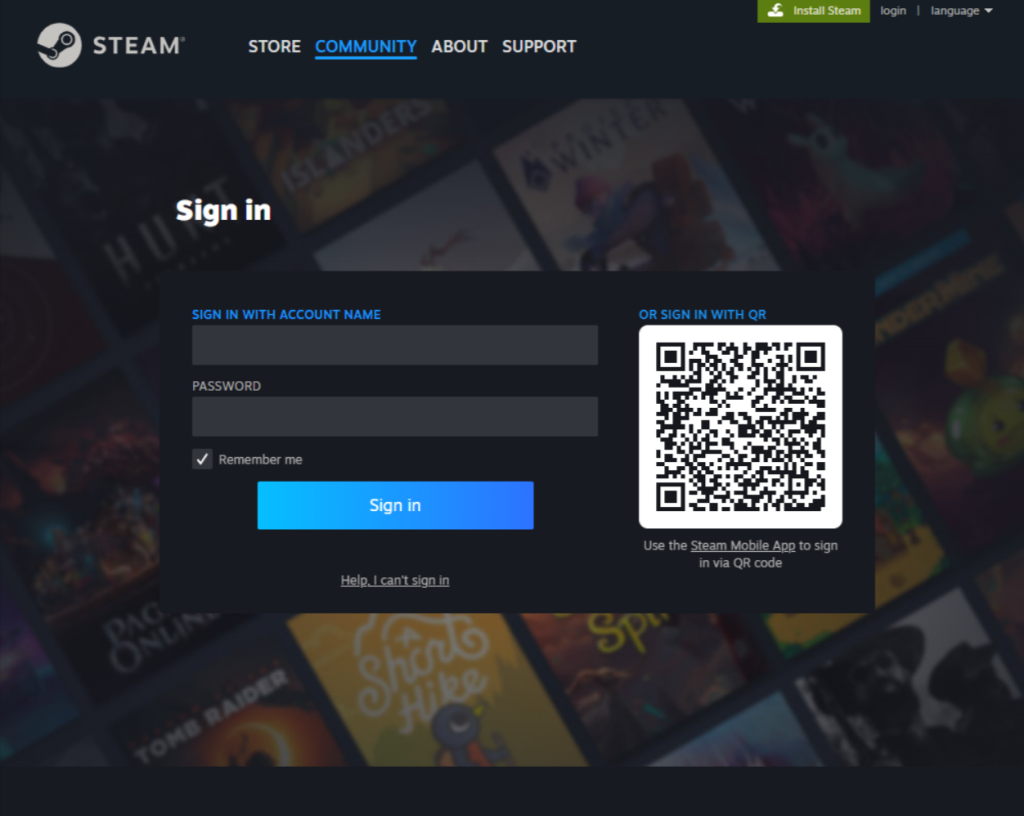
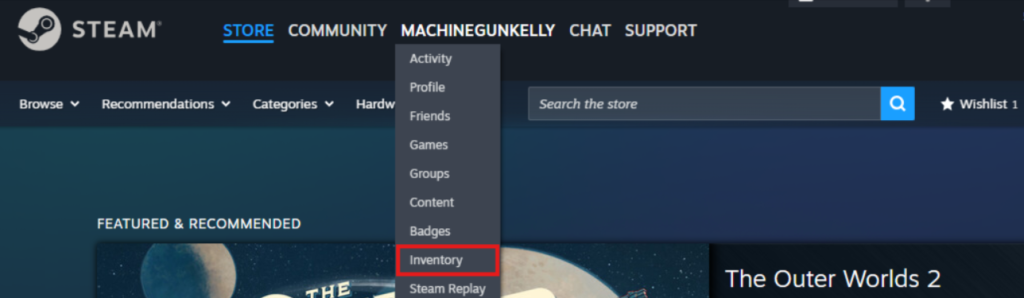
Step 2: Click on Inventory from the menu. If your inventory is set to private, change it to Public so other users or trading sites can view your items.
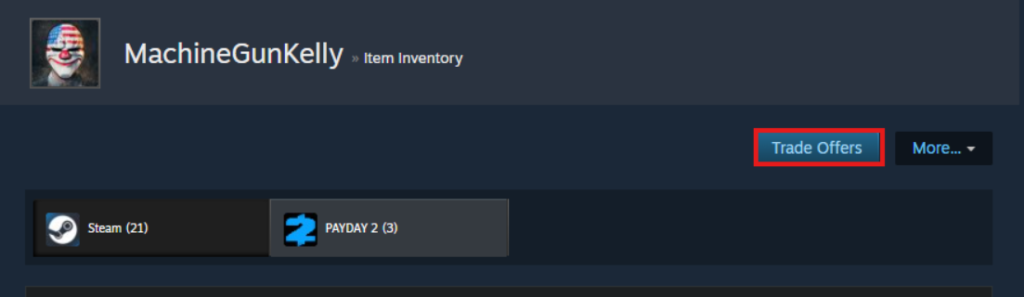
Step 3: On the right side of your inventory, click Trade Offers. This section contains all your current and past trades.
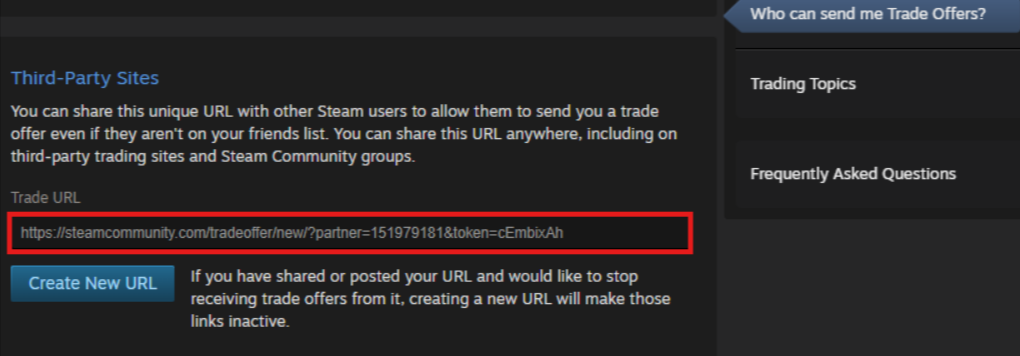
Step 4: Select Who can send me Trade Offers?. This option opens the page where Steam displays your personal trade link Steam, and related settings.
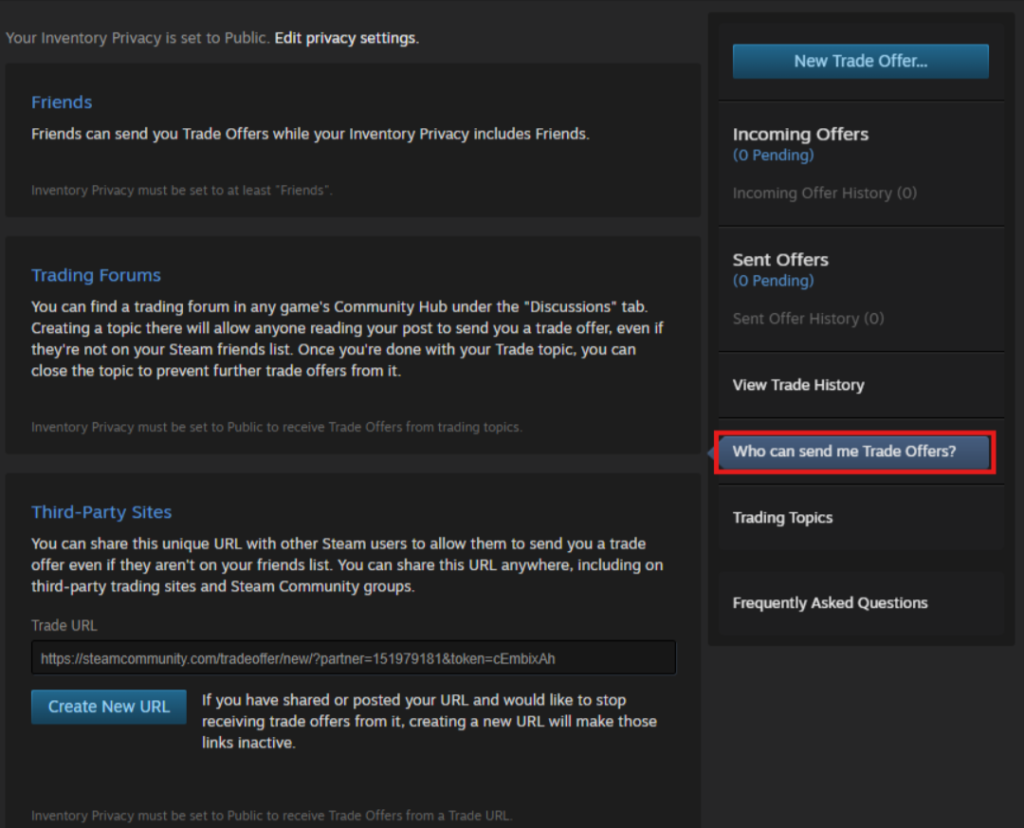
Step 5: Scroll down to where you locate your Steam trade URL within the third-party sites section. Copy it and keep it in a safe place for later use. If you want to replace it with a new one, click Create New URL.
How To Enable Steam Trade Requests?
Before others can send you trade offers, your account needs to be ready for trading. If you just have the Steam Guard Mobile Authenticator, give it at least 7 days so your trades and Market activity can move without long holds. Steam Support explains that accounts with an active mobile authenticator for 7 days or more don’t face the usual restrictions, while accounts without it may face holds.
Here’s what you should do for smooth trading:
- Turn on Steam Guard Mobile Authenticator in the Steam mobile app.
- Keep your inventory privacy settings adjusted to match how you prefer to trade.
- Use trade confirmations on mobile to approve each offer.
Once these steps are done, your account will be fully ready to receive Steam trade requests smoothly and securely.
How to Locate Your Steam Trade URL Using the Mobile App?
You don’t always need a computer to find your Steam trade URL, because the mobile app makes it just as simple. This is handy when you’re trading on the go or using a marketplace on your phone.
Below, you’ll see step-by-step how to find trade URL in Steam using your mobile app:
- Start the Steam app on your device, then enter your login details.
- Tap your profile icon in the top-right corner.
- Select Inventory from the menu.
- Tap Trade Offers.
- Choose “Who can send me Trade Offers?”
- Scroll down and copy your Steam trade URL from the section marked for third-party sites.
Tips & Best Practices for Using Your Trade URL Safely
Your Steam trade URL helps you trade CS2 items faster, although you should still be cautious about sharing it. Scammers will typically try to trick players with fake links or fake bots, so a few simple steps can keep your account protected.
Here’s what you should always do:
- Only share your link with trusted people and trusted services.
- Double-check URLs before logging on anywhere that asks for Steam credentials.
- Enable Steam Guard Mobile Authenticator and lock your device with a PIN or biometrics.
- If you see suspicious offers, decline them and block the sender.
- If you purchased a new phone, don’t turn off the authenticator and follow Steam’s instructions to avoid long holds.
Wrapping Up!
All in all, your link is a key part of faster, safer CS2 trading. You now know how to get Steam trade URL across desktop and mobile, how to turn on protections that cut delays, and how to spot risky situations before you accept anything. Copy it, save it, and keep trading on your terms.
If you’re ready to cash in or trade items, head over to ShadowPay and use the link you just set up to complete trades, sell extra skins, or manage offers in one place.
How to Check if My Steam Trade Link is Working?
Open the link in your web browser while you’re signed in to your Steam account. If it takes you to your trade-offer page, the link works fine. If not, create a new one from the “Who can send me Trade Offers?” Page. That covers how to check Steam trade link quickly.
Can I Reset or Change my Steam Trade URL?
Of course. Just open the “Who can send me Trade Offers?” page and select Create New URL to refresh your link. After that, share the new one and stop using the old link.
How to Create a New Steam Trade URL?
Open your Steam Inventory, click Trade Offers, then click Who can send me Trade Offers?. Choose Create New URL to make a new one. This replaces your old link so that no one can send trades through it.
Is Publishing a Trade Steam URL Safe?
Yes, it’s okay to share with people or trade sites that you trust. The link just enables other people to send you trade offers, it does not grant access to anyone to your account.
















Share to: