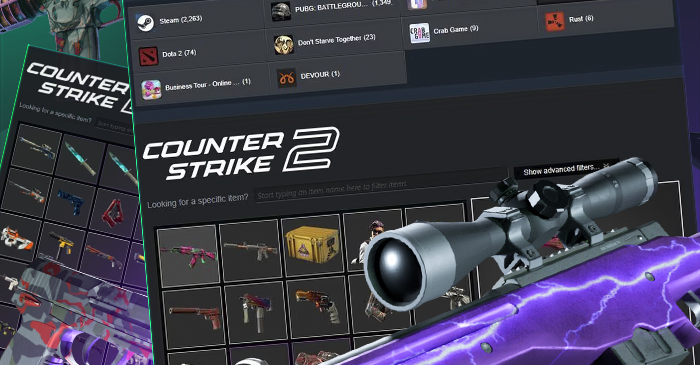

How to Enable Steam Community in Game CS2?
You are in a CS2 match, and you need to check your inventory or reply to a message right away. If you leave the game, you lose time and break your focus. The Steam Community overlay keeps everything inside the game, so you can open chat, view items, and stay in control. That’s why many players search for how to enable the Steam Community in-game CS2.
In this guide, you will learn how to enable Steam Community in-game step by step, fix common problems, and make sure it works every time. Once you enable Steam Community in-game, your sessions feel smoother, and you move faster between tasks. Keep reading, and you will set it up in just a few minutes.
What Is the Steam Community Overlay in CS2?
The Steam Community overlay is a built-in menu that opens on top of CS2 while you play. You can press Shift + Tab to access chat, your friends list, invites, and browser tools without leaving the game screen. This feature helps you stay in CS2 while you check important things, and it supports enabling the Steam Community in-game for smooth access.
Once you enable Steam Community in-game, this overlay becomes active during your session. You can move between gameplay, messages, and inventory in seconds, and you do not need to switch to your desktop. Many players search how to enable Steam Community in-game because it improves access and keeps your setup simple.
Why You Should Enable Steam Community in Game CS2
When you enable Steam Community in CS2, you keep everything in one place. You can open chat, check your inventory, and browse pages without leaving CS2. With this, you save time and keep your focus on the game instead of switching between windows.
Another reason to enable Steam Community in-game is convenience. You go between tasks faster, and you avoid small delays that interrupt your flow. If you have ever asked how to enable Steam Community in-game, the main benefit is simple: faster access to key tools inside CS2.
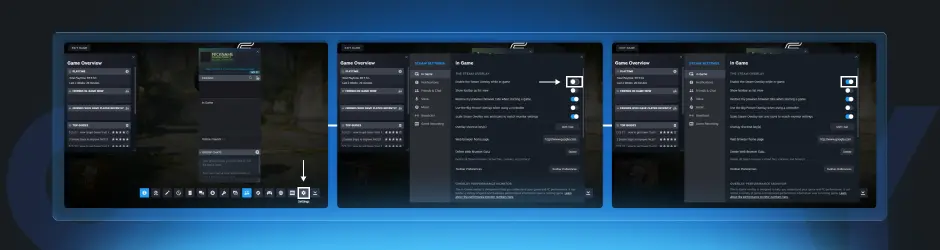
Below, you can see the main benefits in detail:
Quick Access to Inventory and Market
Steam Community in-game gives you quick access to your inventory and market pages. You can open the Steam Community overlay and review your items right away. This helps you track skins, check prices, and stay updated during your session. You also avoid extra steps. Instead of closing CS2, you stay inside the game and move through your inventory with ease.
Easier Trading and Communication
After you enable Steam Community in-game CS2, you can reply to messages and manage trades directly from the overlay. This makes it easier to stay in touch with friends and respond to trade requests on time. You also keep your focus on CS2 while chatting or reviewing trade offers. This helps you enjoy casual play while you handle skin activity.
Improved Overall Gameplay Experience
A well-set overlay makes your game session feel smoother. You stay in one space, and you do not break your rhythm every time you need a Steam feature. Valve also notes that some Steam tools, such as game recording support, rely on games that support the Steam Overlay. When a single menu handles multiple tasks, your whole setup feels easier to use.
How to Enable Steam Community in Game CS2: Step-by-Step Guide
If you want a quick answer on how to enable Steam Community in game CS2, you only need a few simple steps. You turn on the option in Steam, check your CS2 settings, and then test it in-game. This process helps you enable Steam Community with no confusion. Below, you can follow the steps to enable Steam Community in-game the proper way:
Step 1 – Open Steam Settings
Open your Steam, click on the Steam menu at the top left, and go to Settings. From the menu, open the In-Game tab to find the overlay options. This is your starting point if you look for how to enable Steam Community in-game. The main control is in Steam, not inside CS2. Next, move to the overlay option in the same menu.
Step 2 – Enable Steam Community In-Game Option
Inside the In-Game tab, turn on the option to enable Steam Community in-game. Keep the default shortcut as Shift + Tab so you can open the Steam Community overlay with ease. This step is the main part of how to enable Steam Community in-game CS2. After you enable Steam Community in-game, your Steam is ready. Now you only need to confirm CS2 works with it.
Step 3 – Check CS2 Game Properties
Go to your Steam Library, right-click CS2, and open Properties. Review the launch options and remove any unusual commands you see. This step explains how to enable Steam Community in game CS2 when the overlay does not respond. A clean setup removes hidden conflicts. After you check your settings, go to the final step.
Step 4 – Launch CS2 and Test the Overlay
Start CS2 and wait until the game loads fully. Press Shift + Tab and see if the overlay opens. If you see the menu, then you have enabled Steam Community in game CS2 with success. If it does not open, go back and review the steps again. A second check often fixes small setup errors.
Common Problems When Enabling Steam Community In-Game
The overlay may fail for several reasons. The usual list includes a disabled Steam setting, a key problem, a Steam error, or a tool on your PC that clashes with Steam. Actually, most overlay trouble comes from setup friction, not from CS2 itself.
A second issue is that Steam may switch or reset a setting after an update or a restart. That can make the feature feel random when the real problem is just a toggle that turned off. A quick recheck saves you from long, pointless troubleshooting. Let’s break down the most common cases:
Overlay Not Opening (Shift + Tab Not Working)
If Shift + Tab does nothing, check the shortcut first. Steam says this is the default key for the overlay, so a dead response often points to a disabled overlay or a key problem. Start with the shortcut, because that check takes ten seconds.
You should also test the key combo outside of match pressure. Open CS2 at the main menu, press the shortcut, and see if the result changes there. A calm test of the menu helps you isolate the issue faster.
Steam Overlay Disabled Automatically
Some players turn the setting on, restart Steam, then turn it off again. This can happen after an update, due to a file error, or because another program interferes with Steam. If the option keeps switching off, start by restarting Steam and checking the setting again. If it still switches off, update Steam and check again.
Performance or FPS Issues
Some users experience a slight drop in FPS or stutter when turning on the overlay. Steam’s own support pages also show that Steam has overlay-based tools such as the performance monitor and game recording, so extra overlay features can add load on some systems. If your PC is already running near its limit, extra overlay tools can push it over the edge.
If you notice a drop, test the game with fewer background apps and turn off any extra overlay-related features you do not use. Begin with basic settings, and then add extra tools one at a time.
How to Fix Steam Community Overlay Not Working in CS2
If the Steam Community overlay does not open in CS2, start with simple checks. Open Steam Settings, go to In-Game, and turn on Steam Community in-game. After that, restart Steam, start CS2, and use Shift + Tab to test. This step solves many cases where the feature looks active but does not respond. A quick reset of the main settings often clears simple issues.
If the problem stays, check your shortcut and other tools on your PC. Set Shift+Tab as the default key, and close any software that may block the overlay. You can also review CS2 launch options and remove any unusual commands. These steps help you restore normal function when you try to enable Steam Community in game CS2, and the overlay still fails. Remove problems first, then test again in a clean setup.
Is It Safe to Enable Steam Community in Game?
Yes, it is safe to enable Steam Community in game when you use the official Steam. This feature comes from Valve, and it works as part of the platform that runs CS2 and other games. You can open chat, view profiles, and access tools through the Steam Community overlay, all inside a secure environment. Built-in platform tools reduce risk compared to third-party options.
Still, you should stay careful when you interact with links or trade offers inside the overlay. Some users may send fake links or try to trick you during trades, so you need to double-check before you click or confirm anything. When you enable Steam Community in game CS2, you keep control of your account, but your decisions still matter during trades and chats. Safe use depends on your actions, not just the feature itself.
Wrapping Up!
Now you know how to enable Steam Community in game, test it in CS2, and fix the usual problems if Shift + Tab stays silent. You also know why the feature helps with chat, inventory checks, and quick account access.
If you plan to buy skins, do not rely only on the in-game market. You can also check ShadowPay for fast, secure, and verified skin purchases. A short setup can save time every time you open CS2.
How to turn off Steam Overlay CS2?
Open Steam, go to Settings, find In-Game, and switch off the overlay. One toggle controls the whole feature, so the fix stays simple.
What is the shortcut for Steam overlay?
The standard keyboard shortcut is Shift+Tab. Use the default key first so your test stays easy to track.



Share to: